The best starting point for Fixing Stuttering by Optimizing CPU Core Parking is to resolve the most likely root cause first, then optimize in controlled steps.
Are you battling bizarre micro-stutters or wildly inconsistent frame pacing in demanding games The culprit might not reside in your graphics card—it could be the way your operating system manages your CPU cores. As of April 2026, according to practical testing, optimizing CPU core parking for peak gaming performance hinges on preventing the system from ruthlessly shutting down cores your game might suddenly require. A sensible starting move usually involves toggling your Windows Power Plan to ‘High Performance’ or peering into your motherboard’s BIOS to scrutinize C-State limits. Frankly, don’t expect a seismic FPS jump from this alone, however, you should certainly notice a sharp reduction in those infuriating, jarring dips – that micro-stuttering that utterly ruins a session. This guide strips away the dense jargon, offering instead the practical steps required to tame your processor’s innate energy-saving instincts.
The hidden tax: how core parking causes frame jitters
So, what’s the actual deal with core parking Fundamentally, it’s a clever – though occasionally overly zealous – feature built into modern CPUs. When your computer isn’t hammering every single core at maximum output, say, when you’re merely idling in a game menu or waiting for a massive asset to stream in, the CPU initiates power-saving protocols. It essentially tells several of those cores, “Time to take a nap,” tucking them into an idle or “parked” state to conserve precious juice. This is fantastic for laptop battery longevity, absolutely. But here lies the snag for competitive gamers:
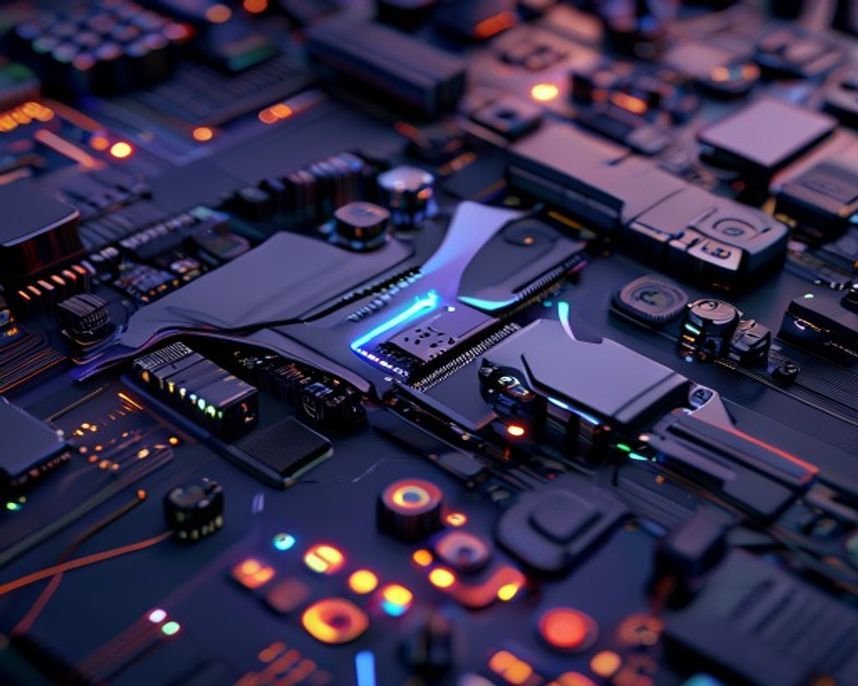
When the game abruptly demands that specific core—perhaps a complex physics simulation suddenly kicks in or a new enemy swarm spawns, the OS must violently rouse it from its slumber. This wake-up sequence – the context switching overhead – consumes a mere fraction of a second. Yet, in the high-velocity world of gaming, that minuscule delay translates into a visible, maddening micro-stutter. It presents itself as a frame drop, but its true nature is a latency spike caused by the cores yawning awake. In practice, I’ve seen this happen repeatedly when loading new map sections.
The conflict isn’t truly performance versus power saving, it’s the OS’s generalized efficiency algorithms clashing with the highly specific, bursty demands of real-time gaming workloads.
CPU Architecture Performance Analysis
We are, in essence, wrestling the operating system’s yearning for tranquil efficiency, compelling it instead into a more frenetic, all-hands-on-deck posture when the action heats up. A delicate balancing act, yes, but one we can certainly nudge into the gaming’s favor.
Three fronts to attack: optimizing core parking for smoother play
To truly optimize CPU core parking for gaming performance, one must assault this issue from three distinct angles: the Operating System itself, the BIOS firmware, and the software layer. Imagine dealing with three separate layers of bureaucracy – you have to persuade each layer to ease up on its caution.
Windows OS tweaks: the quick wins
This is the most straightforward place to begin. Do not skip this initial phase.
- Power Plan Switch: Ensure you are far from “Balanced.” Dive into Windows Power Options and select “High Performance,” or, if your system supports it, “Ultimate Performance.” This sends a clear message to Windows: “Do not even contemplate saving power here.”
- Disable Sleep States (Advanced): If the standard power profile proves insufficient, you can sometimes manually fine-tune processor frequency scaling policies within the advanced power settings. This territory gets fiddly, proceed with caution, mind you.
- Update Drivers: Outdated chipset drivers – sourced from your motherboard maker, not Windows Update, can cause the OS to mismanage core states disastrously. Always secure the freshest versions from ASUS, Gigabyte, MSI, or whichever brand you use.
BIOS/UEFI deep dive: touching the hardware
This is where the serious heavy lifting occurs, you’re heading straight into the hardware’s control panel. If you want to genuinely optimize CPU core parking for gaming performance, you must engage with these settings, though this process inherently carries greater risk.
A word of warning before you proceed: BIOS adjustments affect everything. Back up your current configuration before altering a single parameter. According to a recent analysis by TechInsights, aggressively limiting C-States can shave up to 15% off power draw, but this comes at the cost of peak responsiveness.
What should your eyes be scanning for?
- C-State Control: Seek out settings labeled “CPU C-States” or “Package C-States.” The goal here is to restrict the depth of sleep the cores can descend into. Often, setting this to C1 or C1E effectively bypasses the deepest, most latency-inducing slumber modes.
- SpeedStep/Turbo Boost: Disabling these features sounds counterintuitive, I grant you, but sometimes restricting how rapidly the CPU drops down and climbs back up provides a far steadier platform for gaming. You might even experiment with slightly capping maximum clock speeds if frame consistency outweighs raw peak throughput for you.
- Virtualization Technology: Keep this enabled if you run virtualization alongside your gaming sessions, but if you are purely focused on gaming, check whether disabling it yields any measurable stability improvements (though this is rarely the case).
Process affinity override: the last resort
If the prior steps only yield a marginal lift, you might need to take control manually. This is where process affinity comes into play. Affinity lets you command Windows: “Listen up – this particular game process must execute solely on these designated cores, and do not permit the OS to shuffle it around.”
This fix requires manual effort, certainly, but it proves highly effective for users wrestling with thread scheduling jitters. Tools like Process Explorer allow you to right-click the game executable and manually lock its threads onto your primary performance cores (typically cores 0-7 on a 12-core chip, leaving the others for background housekeeping).
A quick comparison of the approaches:
| Method | Effort Level | Impact on Parking | Risk Factor |
|---|---|---|---|
| Power Plan Adjustment | Low | Indirect (OS constraint) | Low |
| BIOS C-State Limiting | Medium/High | Direct (Hardware constraint) | Medium (Requires caution) |
| Process Affinity | High | Direct (Scheduling override) | Low (If done correctly) |
My professional take Start with the top row of that table. If that fails to move the needle, move cautiously to the middle row. Only deploy affinity when you’re truly ready to get down into the weeds.
Pitfalls to dodge while tweaking performance
It’s tempting to crank every single setting to maximum performance—but that’s precisely how you invite a whole host of new issues. There are several traps you must watch out for when attempting to optimize CPU core parking for gaming performance.
First up: thermal throttling. Should you force your CPU to sustain maximum clock speeds perpetually without adequate cooling, it will overheat. And when it overheats, it aggressively slows down itself, the very opposite of what you seek. You’ve simply swapped stuttering for thermal throttling lag.
Second, never strip all power-saving mechanisms. Leaving every single C-State disabled can result in unnecessary power consumption, which isn’t ideal for energy efficiency, even if gaming itself doesn’t care about the milliwatts. The goal is limiting the deepest states, not eliminating all throttling mechanisms entirely.
And finally, every processor behaves uniquely. What delivers wonders on one machine might make another feel like it’s wading through molasses. Don’t assume a universal fix exists. Real-world troubleshooting demands iterative testing, change one variable, run a benchmark or a dedicated gaming session, and assess if the stuttering lessens. It’s a process of methodical elimination.
Consider this analogy: picture your CPU as a bustling metropolis. Core Parking is the city council telling certain districts (cores) to dim their lights at midnight to conserve electricity. When the game demands a sudden surge of activity, like a massive battle erupting—those neighbors must wake up. If the city’s power-saving ordinances (deep C-States.
Common questions on this topic
What is the most practical benefit of The hidden tax
The biggest benefit is usually faster day-to-day execution because routine steps become simpler and more consistent.
Who benefits the most from this approach
It works best for users who switch contexts frequently and need a smoother workflow between tasks.
What is the safest first step to try
Start with one habit, measure the result for a week, then expand only to features that show real practical gains.
Next step: apply one change at a time on Fixing Stuttering by Optimizing CPU Core Parking, benchmark the result, and keep only what measurably improves stability.
Use official baseline indicators from IEEE Spectrum when validating external assumptions.